
How to Ride Intervals.icu Workouts on a Smart Trainer
Connect Intervals.icu to MINI WATT, open a planned cycling workout, ride it in ERG mode, and upload the completed FIT activity.
Published
Intervals.icu plans the workout. A riding app runs it and controls your smart trainer. Connect Intervals.icu to MINI WATT, choose a planned cycling session, ride in ERG mode, then send the completed FIT activity back.
What you need
Install MINI WATT for macOS or Windows, sign in, and have an Intervals.icu account with a cycling workout on its calendar. For trainer-controlled ERG riding, use a compatible Bluetooth FTMS smart trainer. Check the FTMS compatibility guide if your trainer only advertises “Bluetooth.”
A power sensor can report watts, but a controllable FTMS trainer is what lets MINI WATT set ERG resistance.
Ride a planned workout in six steps
1. Connect Intervals.icu
In MINI WATT, open Settings, find Account, and choose Connect Intervals.icu. Complete the authorization in your browser, then return to the app. The account row should show that Intervals.icu is connected. If it says Reconnect, use that control to restore calendar and activity permissions.

2. Find the planned cycling workout
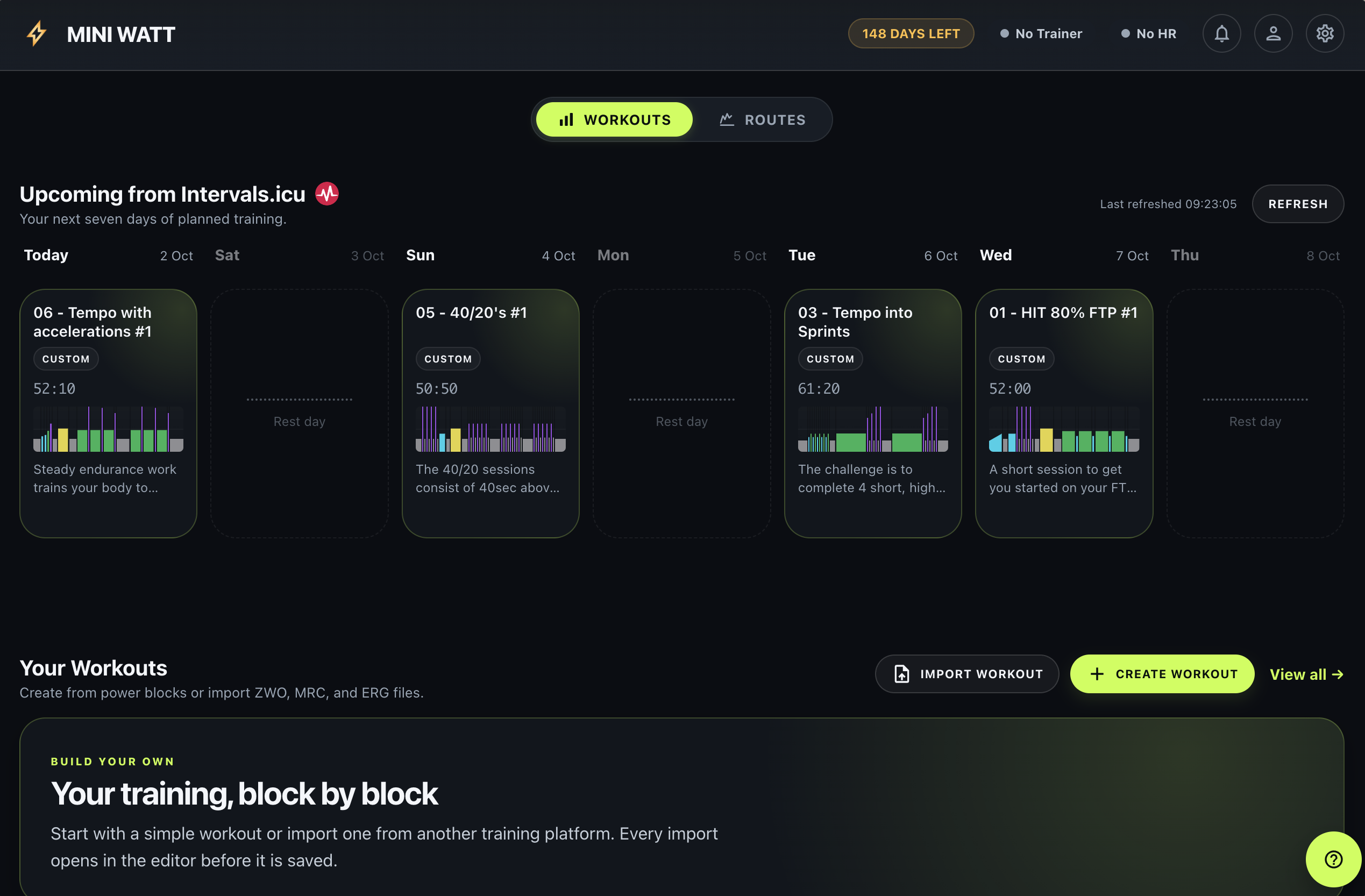
On Home, choose the Workouts tab. Upcoming from Intervals.icu shows today plus six more days. Choose a workout card to open its details. This view is for planned cycling workouts, not your completed activity history. If you just changed the calendar, use Refresh.
3. Check the prescription and trainer
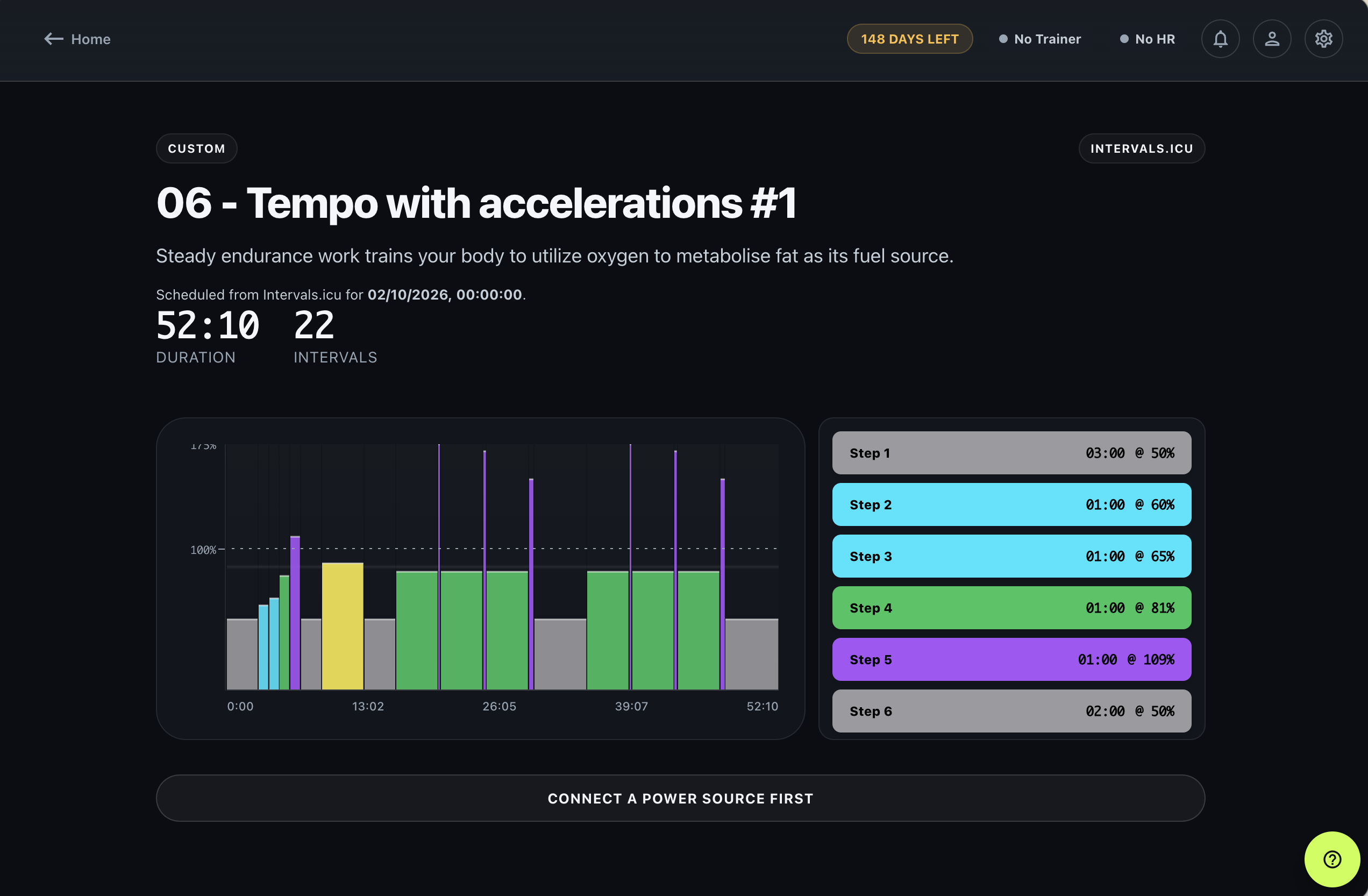
Read the scheduled date, duration, power profile, and each block's target. Check My FTP in Settings: a percentage of FTP becomes a watt target using that value. If a step is flagged as unavailable or lacks a usable ERG target, address the warning before riding. Choose Connect a power source first if the trainer is not connected, then pair your FTMS trainer.
4. Start and ride
Choose Start workout once the trainer is connected and the targets look right. MINI WATT sends each power target to the trainer in ERG mode. Hold a comfortable cadence while resistance changes between blocks. If ERG feels unfamiliar, read how ERG mode works.
5. Review the completed ride
After finishing, check the Workout Complete summary for duration, power, and other recorded metrics. The planned calendar entry told you what to do; this new activity records what you actually rode.
6. Upload the FIT activity
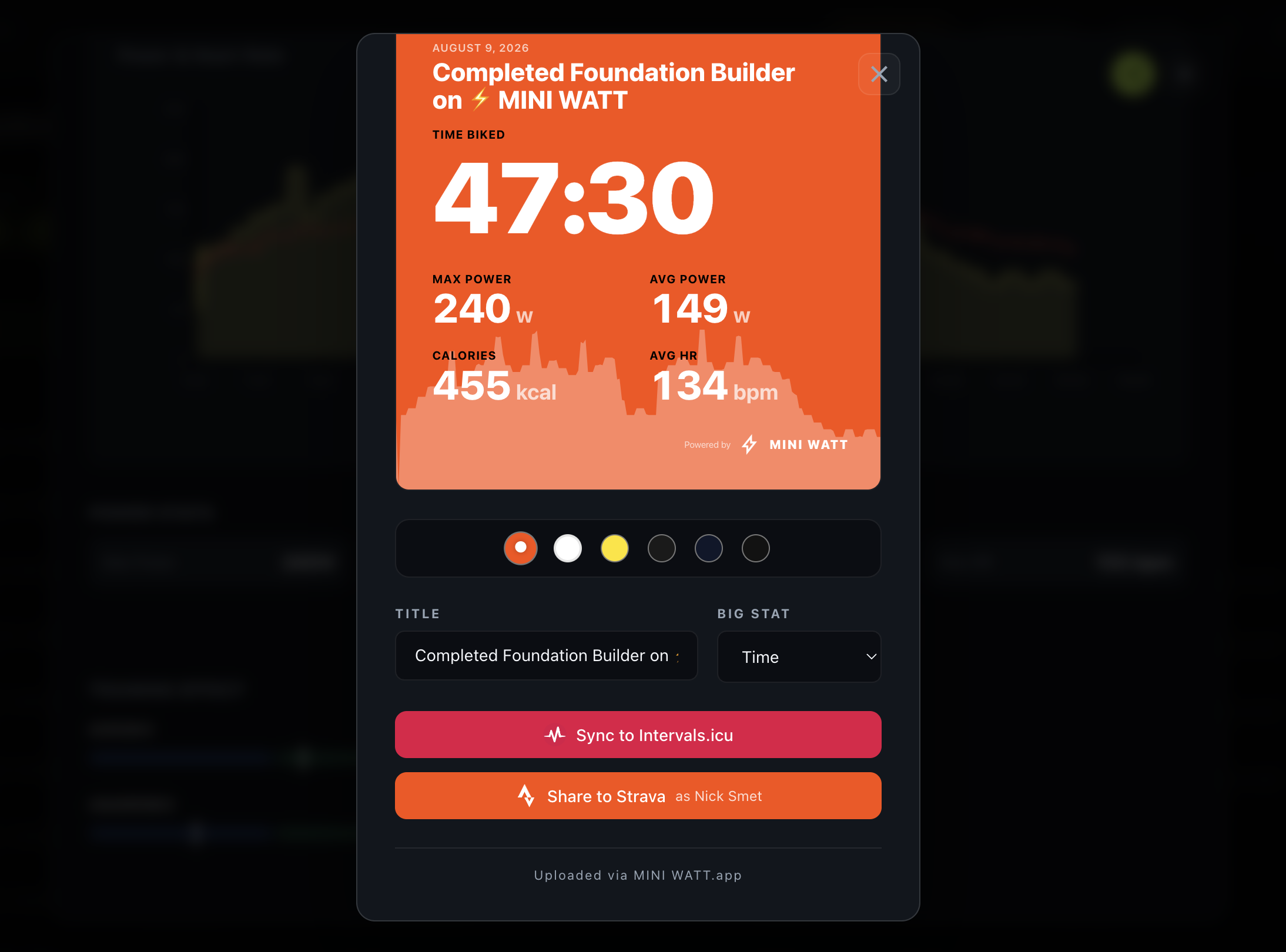
On the summary, choose Sync to Intervals.icu. The same control appears in the Share panel. Wait for Synced to Intervals.icu before leaving. If it fails, use Retry Intervals.icu sync. You can also revisit a completed planned workout to check its status. Connecting the accounts alone does not import your full historical activity library.
The Share panel below shows a different completed ride; its sync control is in the same place.
If a workout or upload is missing
| What you see | What to check | Next action |
|---|---|---|
| No Intervals.icu section | The connection state in Settings > Account | Connect or reconnect Intervals.icu. |
| Planned workout absent | Cycling workout date and the seven-day window | Check the Intervals.icu calendar, then choose Refresh in MINI WATT. |
| Start is unavailable | Trainer connection or a warning on the workout detail | Pair the power source; read any unavailable-step message. |
| Completed ride not on Intervals.icu | Summary or workout sync status | Choose Sync to Intervals.icu if it has not been sent. |
| Upload failed | The displayed error and account connection | Reconnect if prompted, then choose Retry Intervals.icu sync. |
- What you see
- No Intervals.icu section
- What to check
- The connection state in Settings > Account
- Next action
- Connect or reconnect Intervals.icu.
- What you see
- Planned workout absent
- What to check
- Cycling workout date and the seven-day window
- Next action
- Check the Intervals.icu calendar, then choose Refresh in MINI WATT.
- What you see
- Start is unavailable
- What to check
- Trainer connection or a warning on the workout detail
- Next action
- Pair the power source; read any unavailable-step message.
- What you see
- Completed ride not on Intervals.icu
- What to check
- Summary or workout sync status
- Next action
- Choose Sync to Intervals.icu if it has not been sent.
- What you see
- Upload failed
- What to check
- The displayed error and account connection
- Next action
- Reconnect if prompted, then choose Retry Intervals.icu sync.
Have a workout file instead?
On Home > Workouts, choose Import workout. Pick a ZWO, MRC, or ERG file. MINI WATT opens it in the editor so you can review the blocks and targets before choosing Save workout. An imported file goes into your MINI WATT workouts; it is not the same thing as downloading a planned session from your Intervals.icu calendar. See workout building and imports for the other ways to prepare a ride.
When MINI WATT fits
This flow is for cyclists who plan power workouts in Intervals.icu and want a desktop app to execute them on a Bluetooth FTMS trainer.
When MINI WATT is not the right fit
It will not import your full past Intervals.icu activity library. This guide also does not cover running or swimming workouts.
Action plan: Ride your next session
- 1
Connect Intervals.icu in MINI WATT Settings.
- 2
Open the planned cycling workout in Home > Workouts.
- 3
Check FTP, targets, and trainer connection; then start.
- 4
Review the ride and sync its completed FIT activity.
Common mistakes
**Treating the plan as ride history
** A calendar workout is a prescription. Upload the completed activity after riding.
**Looking outside the date window
** The upcoming view covers today and the next six days.
**Assuming upload succeeded
** Check for the synced status and retry a failed upload.
FAQ
Which app can run Intervals.icu workouts on my trainer?
MINI WATT can run supported planned cycling workouts on a Bluetooth FTMS trainer.
Why isn't my planned workout appearing?
Check the connection, cycling workout type, scheduled date, and seven-day window; then use **Refresh**.
Can I import a ZWO workout?
Yes. Choose **Import workout**, review it in the editor, and choose **Save workout**.
Can I also import MRC or ERG files?
Yes. The same import control accepts both formats.
Where do I connect Intervals.icu?
In MINI WATT **Settings > Account**, choose **Connect Intervals.icu**.
How far ahead can I see workouts?
The upcoming view covers seven days, including today.
Does the connection import my old activities?
No. It does not import your complete historical activity library.
Is the planned workout the completed activity?
No. The activity records the ride you actually completed.
Does connecting automatically upload my ride?
Use the summary's **Sync to Intervals.icu** control and verify the status.
What if the FIT upload fails?
Read the error, check the connection, then choose **Retry Intervals.icu sync**.
Sources
- MINI WATT Workouts, accessed 2026-10-02
- Download MINI WATT, accessed 2026-10-02
- Intervals.icu: Plan Your Training, accessed 2026-10-02
- Bluetooth SIG: Fitness Machine Service, accessed 2026-10-02
Related Articles
ERG Mode Explained: What Your Smart Trainer Is Actually Doing
A plain-language ERG-mode guide explaining trainer resistance, cadence, gear choice, ordinary response delay, and the first steps for a smoother structured workout.
The ERG Mode Spiral: Why Your Trainer Gets Stuck and How to Get Out
A practical ERG lock recovery guide that explains the cadence-resistance loop, the immediate reset, and the target, gear, and trainer-range checks that prevent a repeat.